

Smart Pet Feeder WiFi Issues: Fixes That Work
Table of Contents
- Why Your Smart Pet Feeder Loses WiFi Connection
- 2.4GHz vs 5GHz WiFi for Smart Home Devices
- Step-by-Step: Fixing WiFi Connection Issues
- How to Reset Your Smart Pet Feeder
- Troubleshooting Smart Pet Feeder Offline Status
- What to Do When WiFi Stays Down
- Frequently Asked Questions
Last Updated: September 2, 2026
Why Your Smart Pet Feeder Loses WiFi Connection
A smart pet feeder losing WiFi connection is frustrating, but it's rarely a hardware failure. Most connectivity issues stem from network configuration mismatches, interference, or simple oversights during setup. Understanding the root cause puts you in control of fixing it quickly.
The challenge is that smart pet feeders operate at the intersection of two complex systems: your home network and the device's firmware. When those systems don't communicate properly, your feeder goes offline. The good news is that most issues follow predictable patterns, and we've outlined the fixes that actually work.
At Bentley's Bark, we've helped pet parents troubleshoot connectivity problems with smart feeders like our 6L Smart Automatic Pet Feeder with WiFi & Camera, and the solutions are consistent across brands. Before you assume the device is defective, work through these steps systematically.
2.4GHz vs 5GHz WiFi for Smart Home Devices
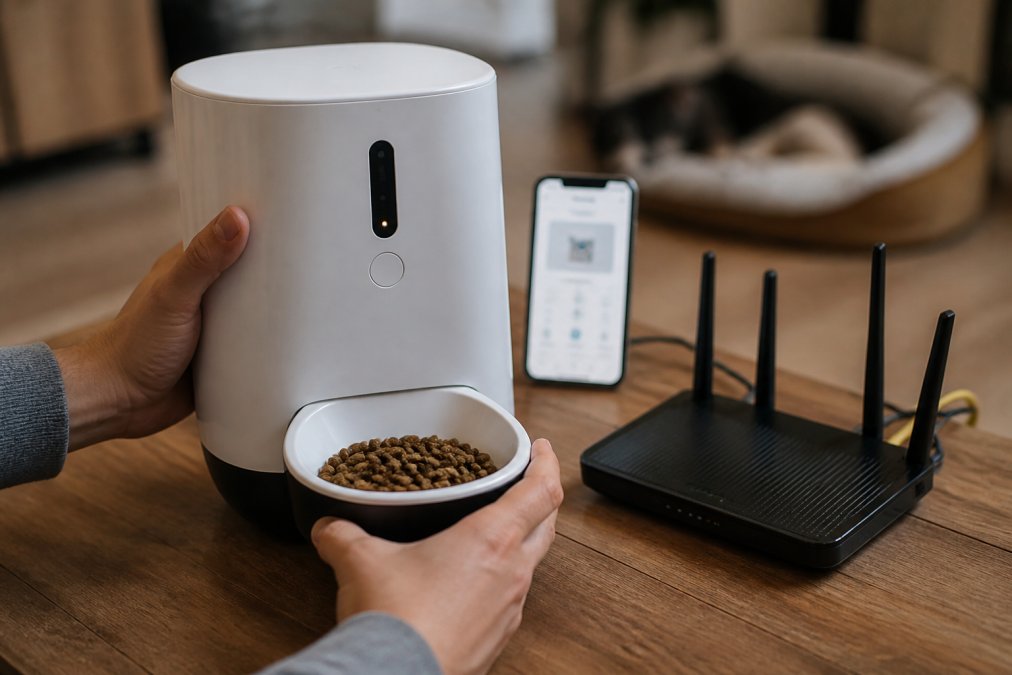
Most smart pet feeders operate exclusively on 2.4GHz frequency bands. This is not a limitation of the feeder, it's a design choice that prioritizes range and wall penetration over raw speed. Your router probably broadcasts both 2.4GHz and 5GHz simultaneously, which creates a potential problem if you're not aware of the difference.
2.4GHz frequency offers better range and wall penetration. A signal at 2.4GHz travels farther and passes through obstacles more effectively than 5GHz. This is why smart home devices, pet feeders, security cameras, smart locks, almost always use 2.4GHz. The trade-off is lower data throughput, but for a device sending small packets of feeding data, that's irrelevant.
5GHz frequency provides faster speeds and less interference from other devices. It's ideal for streaming video or downloading large files, but the signal doesn't penetrate walls as effectively. Devices connected to 5GHz need to be closer to the router or in the same room.
Here's where the problem occurs: if your router has a single SSID (network name) that broadcasts both frequencies simultaneously, your feeder might attempt to connect to the 5GHz band and fail silently. The app then shows the device as offline, even though the feeder is powered on and listening.
The fix is straightforward. Log into your router settings and check whether you can separate the 2.4GHz and 5GHz bands into distinct SSIDs. Most modern dual-band routers allow this. Create a separate 2.4GHz network with its own name and password, then connect your feeder to that network exclusively. Keep your phones and computers on the 5GHz network for faster speeds.
If your router doesn't allow band separation, you can force it to prioritize 2.4GHz in the wireless settings. Check your router's manual, the exact steps vary by manufacturer, but this option exists in nearly every modern device.
Step-by-Step: Fixing WiFi Connection Issues
Check Your Network Credentials and Signal
Start with the basics. Verify that you're using the correct network name and password. This sounds obvious, but typos happen, especially when entering a password without seeing it displayed.
Open your feeder's app and navigate to the WiFi settings section. Most apps have a "Connect Device" or "Add Device" option that walks you through the pairing process. During this process, the app should display a list of available networks. Confirm that your 2.4GHz network appears in that list.
If your network doesn't appear, the feeder isn't detecting any WiFi signals. This indicates either a signal strength problem or the network is hidden. Move the feeder closer to your router, within 3 to 4.5 meters, and try again. If the network still doesn't appear, your router's SSID broadcast setting may be disabled. Log into your router and enable SSID broadcasting.
Check your signal strength. Most routers have a signal indicator on the device itself or in the admin panel. If you're in a corner of your home far from the router, or if thick walls separate the feeder from the router, the signal may be too weak for reliable connection. Reposition the router or the feeder to improve signal path. Avoid placing the feeder in a cabinet or enclosed space, these block WiFi signals significantly.
Power Cycle Your Feeder and Router
A power cycle forces both devices to reset their connection state. This is different from a simple restart, it clears cached network data and forces a fresh handshake between devices.
Unplug your feeder from the power outlet. Wait 30 seconds. Plug it back in and wait for the LED indicator to stabilize (usually 1-2 minutes). While the feeder is rebooting, unplug your router. Wait 30 seconds. Plug the router back in and wait 2-3 minutes for it to fully boot.
Once both devices are powered on, open the feeder app and attempt to reconnect. The app should guide you through the pairing process. Enter your network credentials carefully. If the connection succeeds, the app will confirm and the feeder's LED should change to a steady color (usually blue or green, depending on the model).
If the connection still fails after a power cycle, move to the next step.
Clear the App Cache and Reconnect
Your phone's app may be storing outdated connection information. Clearing the cache forces the app to request fresh data from the feeder and cloud servers.
On iOS, go to Settings > General > iPhone Storage, find the feeder app, and select "Offload App." This removes the app but keeps your data. Then reinstall the app from the App Store.
On Android, go to Settings > Apps, find the feeder app, select "Storage," and tap "Clear Cache." Then open the app and attempt to reconnect.
If you've set up the feeder before, the app may try to reconnect to a previously saved device profile. Signing out of your account and signing back in can reset this connection state. Delete the feeder from your app's device list, then add it again as a new device.
How to Reset Your Smart Pet Feeder
A factory reset erases all settings and returns the feeder to its original state. Use this only after other troubleshooting steps have failed, since you'll need to reconfigure feeding schedules afterward.
Most smart pet feeders have a small reset button on the underside or back of the device. Using a paperclip or thin tool, press and hold the reset button for 10-15 seconds. The LED indicator will flash or change color, signaling that the reset is in progress.
Release the button and wait for the feeder to complete the reset cycle (usually 1-2 minutes). The LED should return to its default state, indicating the feeder is ready for setup.
Open the app and follow the initial setup process as if you're connecting the feeder for the first time. This time, ensure you're connecting to your 2.4GHz network specifically. The feeder should pair successfully if your network is configured correctly.
If the factory reset doesn't resolve the issue, the feeder may have a hardware problem. Contact the manufacturer's support team or consider a replacement unit.
Troubleshooting Smart Pet Feeder Offline Status
Network Security and Firewall Conflicts
Your router's security settings or firewall can block the feeder from communicating with the cloud servers that manage remote feeding commands. This is less common but worth investigating if other steps haven't worked.
Log into your router's admin panel (usually 192.168.1.1 or 192.168.0.1, though your manual will confirm). Check the firewall settings and ensure that the feeder's app isn't blocked. Some routers have a "Device Isolation" or "AP Isolation" feature that prevents devices from communicating with each other. Disable this feature temporarily and test the connection.
If your router uses MAC address filtering, the feeder's MAC address must be added to the whitelist. The feeder's MAC address is usually printed on a label underneath the device or displayed in the app's device information section. Add it to your router's whitelist and test the connection again.
WPA2 encryption is standard and compatible with smart feeders. If your router uses an older security standard (WEP) or a non-standard encryption method, the feeder may struggle to connect. Update your router's security settings to WPA2 or WPA3 for best compatibility.
Offline Feeding: Your Safety Net
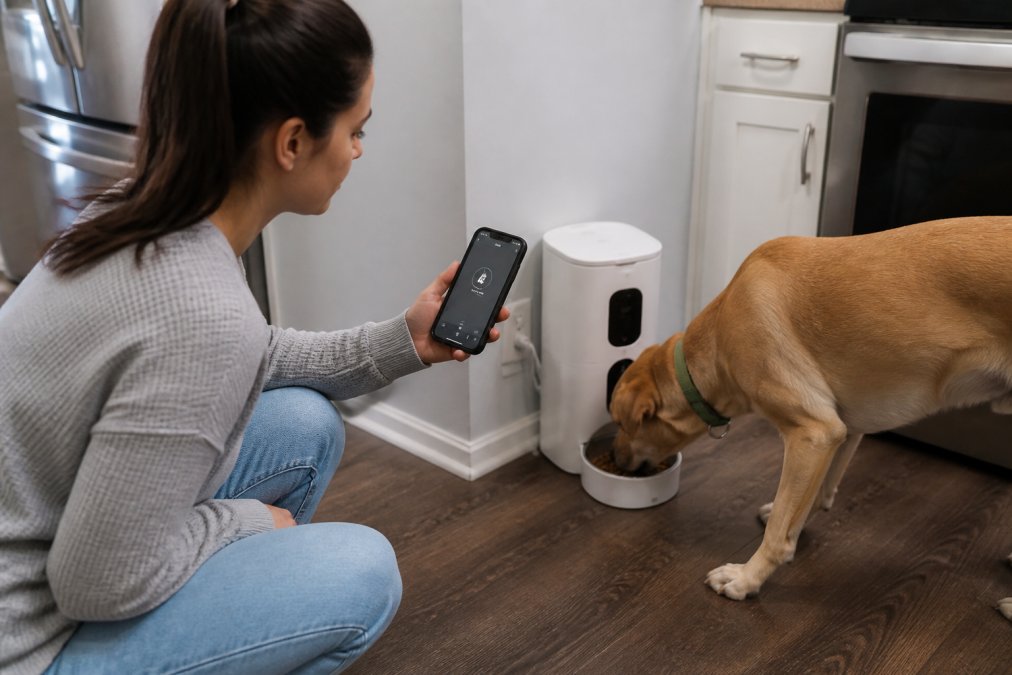
If your feeder goes offline and stays offline, your pet still needs to eat. Smart feeders with offline feeding capability can dispense meals using a manual button or mechanical backup, even without WiFi.
Check your feeder's manual for the manual feed button. It's usually a physical button on the device itself. Pressing it will dispense a single portion of food without requiring a WiFi connection. This is your emergency backup.
Some smart feeders, like Bentley's Bark's 5.5L Programmable Pet Feeder for Cats and Dogs, offer a mechanical timer mode that operates independently of WiFi. If the WiFi connection is lost, the feeder can still dispense meals on a preset schedule using its internal timer. This requires initial setup while the feeder is online, but it ensures your pet eats even if your internet goes down.
Plan for extended outages. If your WiFi has been unreliable, consider keeping a backup manual feeder on hand. A simple bowl-based feeder costs far less than a smart feeder and requires no electricity or internet. It's not convenient, but it's reliable.
What to Do When WiFi Stays Down
If you've worked through all the steps above and the feeder remains offline, it's time to escalate.
Contact the feeder manufacturer's support team. Provide them with your router model, the feeder model, and a description of what you've already tried. Many manufacturers have encountered specific router compatibility issues and can provide targeted solutions. Some older router models have firmware bugs that prevent proper communication with certain smart devices. A firmware update from the router manufacturer might resolve the issue.
Check whether your internet service provider (ISP) has any restrictions on smart home devices. Some ISPs block certain ports or protocols that smart feeders rely on. Contact your ISP's technical support and ask whether they've implemented any device-specific filtering.
If the feeder has been offline for more than a few hours and you can't resolve it quickly, use the manual feed button to ensure your pet eats. Don't let troubleshooting interfere with your pet's feeding schedule.
Consider whether the feeder's location is the problem. If it's in a corner of your home far from the router, the signal may be too weak for stable connection. Moving the feeder closer to the router or relocating the router itself might be the simplest solution, even if it's not the most convenient one.
Smart pet feeder WiFi issues are solvable in most cases. Start with frequency verification, confirm your feeder is connecting to 2.4GHz, then work through power cycling, app cache clearing, and factory reset if needed. If connectivity remains a problem after these steps, network security settings or hardware limitations are likely the culprit.
At Bentley's Bark, we stand behind the quality of our smart feeders. Our products are designed for reliable performance with standard home networks, and we're committed to helping you get the best experience. If you're shopping for a smart feeder that prioritizes connectivity and ease of use, explore our curated selection of smart pet gadgets with complimentary shipping on every order. A feeder that stays connected means peace of mind for you and consistent meals for your pet.
Frequently Asked Questions
Why does my smart pet feeder keep saying 'unable to connect to WiFi'?
This error typically means your feeder cannot reach your router or authenticate with your network credentials. Start by verifying your WiFi password is correct in the app, check that your router is powered on and broadcasting your SSID, and ensure the feeder is within range. If your router uses both 2.4GHz and 5GHz bands with the same name, temporarily disable the 5GHz band, most smart pet feeders require 2.4GHz. Power cycle both the feeder and router, waiting 30 seconds between each restart.
Does my smart pet feeder require 2.4GHz or 5GHz WiFi?
Most smart pet feeders, including the 6L Smart Automatic Pet Feeder with WiFi & Camera, connect exclusively to 2.4GHz networks. The 2.4GHz frequency has better range and wall penetration, making it ideal for devices spread throughout your home. If your router broadcasts both bands under the same SSID, your feeder may struggle to connect. Log into your router settings and either create a separate 2.4GHz network name or disable 5GHz temporarily to isolate the 2.4GHz signal.
How do I reset my smart pet feeder if it won't connect?
Most smart feeders have a factory reset button on the bottom or back panel, hold it for 10-15 seconds until the LED indicator flashes or changes color. Alternatively, unplug the feeder for 2 minutes, then plug it back in and hold the reset button. After a factory reset, you'll need to reinstall the feeder in the app as if it's new. Remove the old device from your app first, then add it again using the setup wizard. This clears any corrupted network settings and usually resolves persistent connection problems.
Why is my smart pet feeder offline even though WiFi is working?
An offline status can result from several causes: your feeder lost connection to the router but hasn't reconnected yet, your router's firewall is blocking the feeder's IP address, or there's a cloud server outage affecting the app. Check your router's connected devices list to see if the feeder appears, if not, it's disconnected from the network. If it does appear, try power cycling the feeder. If the problem persists, check your router's security settings to ensure the feeder's MAC address isn't being blocked. Most smart feeders still dispense food on a schedule even when offline, so your pet will continue to eat.
This article was written using GrandRanker