

Smart Pet Feeder WiFi Reliability: 7 Tips That Work
Table of Contents
- Why Smart Pet Feeder WiFi Reliability Matters
- Understanding 2.4GHz vs 5GHz WiFi for Smart Devices
- Optimize Your Router Placement and Signal Strength
- Smart Pet Feeder Battery Backup Importance
- Troubleshooting Pet Feeder App Connection Issues
- Secure Your Network and Prevent Interference
- Maintain Your Feeder for Long-Term Performance
- Conclusion
Last Updated: August 24, 2026
Why Smart Pet Feeder WiFi Reliability Matters
Your pet's meal schedule shouldn't depend on whether your internet connection cooperates. A smart pet feeder with WiFi connectivity offers convenience, remote feeding, portion control, and real-time monitoring from anywhere. But that convenience evaporates the moment your connection drops. The frustration of coming home to a hungry pet underscores why smart pet feeder wifi reliability isn't a luxury feature, it's foundational.
At Bentley's Bark, we've watched pet parents invest in smart feeding technology only to abandon it after connectivity issues made it less reliable than a manual feeder. The problem isn't the devices themselves; it's that most owners don't understand the network conditions these feeders need. A feeder three meters from your router behaves completely differently than one on the opposite side of your home. Firmware versions, router settings, and even neighboring WiFi all matter.
This guide covers practical steps that stabilize your smart pet feeder wifi reliability. These are the adjustments that solve the connectivity problems pet parents encounter most often. By the end, you'll know how to diagnose why your feeder drops offline, optimize your network for consistent operation, and maintain long-term stability so your pet never misses a meal.
Understanding 2.4GHz vs 5GHz WiFi for Smart Devices
Most smart pet feeders operate exclusively on 2.4GHz frequency bands. This is a deliberate design choice: 2.4GHz has superior range and wall-penetration compared to 5GHz. The trade-off is that 2.4GHz is more congested. Microwaves, cordless phones, baby monitors, and dozens of smart home devices all compete for the same bandwidth.
Here's where most troubleshooting guides get it wrong: they suggest switching to 5GHz as a fix. Don't. Your feeder won't connect to 5GHz at all. Instead, optimize your 2.4GHz network specifically for IoT devices like feeders.
Many routers broadcast both bands simultaneously, and if your router automatically selects which band a device uses, it might try to push your feeder onto 5GHz, where it can't connect. Check your router settings and ensure the 2.4GHz band is enabled and broadcasting clearly. Some routers let you separate the bands into distinct networks with different names (SSIDs), giving you direct control over which band your feeder uses.
:::pro If your router offers a 2.4GHz-only network option, create a separate SSID just for smart home devices. This lets you optimize settings specifically for IoT reliability without affecting your phone or laptop connections. :::
Optimize Your Router Placement and Signal Strength
Router placement is the single biggest factor determining whether your feeder stays connected. Most people hide their router in a closet or cabinet to minimize visual clutter. This is exactly wrong for WiFi performance. Position your router in a central, elevated location. High shelves work better than floor-level placement because radio signals travel more effectively when not blocked by furniture or structural elements.
Obstacles matter more than distance. A feeder 10 meters away with clear line-of-sight to the router will have better connectivity than one just 3 meters away behind a wall or metal cabinet. Walls with metal studs or plumbing absorb and reflect 2.4GHz signals.
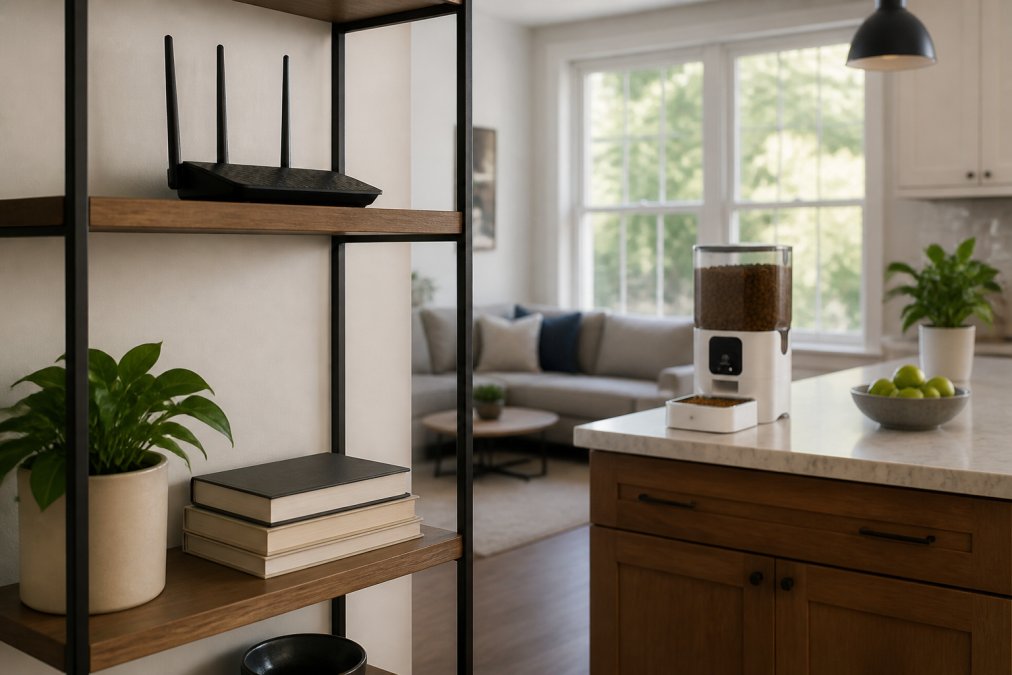
Test your actual signal strength at the feeder's location using your phone. Most routers have a mobile app that displays signal strength in decibels. Aim for at least -67 dBm at the feeder location (fcc.gov). Anything weaker than -75 dBm will cause reliability issues.
Channel selection on 2.4GHz matters significantly. The 2.4GHz band has 11 overlapping channels in most regions. If your router and your neighbor's router both broadcast on channel 6, they interfere with each other. Use a WiFi analyzer app to scan which channels are least congested in your area, then manually set your router to that channel. Channels 1, 6, and 11 don't overlap; stick to one of these (fcc.gov).
Smart Pet Feeder Battery Backup Importance
A feeder with dual power supply, both WiFi connectivity and battery backup, provides the reliability you actually need. When your internet drops, a feeder with local memory and battery backup can still dispense meals according to the schedule you programmed earlier. Your pet eats on time.
Without battery backup, a feeder becomes useless the moment your WiFi connection fails. It won't dispense food, won't record what happened, and won't alert you to the problem.
The smart pet feeder battery backup importance extends beyond just feeding during outages. Battery systems provide a buffer during brief WiFi interruptions. These micro-disconnections happen constantly on congested networks, your feeder loses connection for 5 to 15 seconds while the router reassociates the device. A feeder with battery backup maintains power to its dispensing mechanism during these gaps, so meals dispense reliably even during momentary connection loss.
Look for feeders with rechargeable battery systems or standard battery slots you can replace. Check how long the battery lasts on a single charge. Many smart feeders with battery backup will operate for 2 to 5 days without power if WiFi is also down (peer-reviewed research).
The offline memory feature is equally critical. When your feeder is offline, it should continue following the feeding schedule stored in its local memory. When WiFi reconnects, it syncs with the app and you can see what meals were dispensed during the outage.
Troubleshooting Pet Feeder App Connection Issues
When your feeder shows offline in the app but your WiFi is working fine, start with the basics: restart the feeder itself. Unplug it for 30 seconds, then plug it back in. This clears temporary connection issues and forces the feeder to re-authenticate with your network. Most connection problems resolve here.
If the feeder still won't connect, check the app for firmware updates. Outdated firmware causes compatibility issues with routers and can prevent reliable WiFi reconnection.
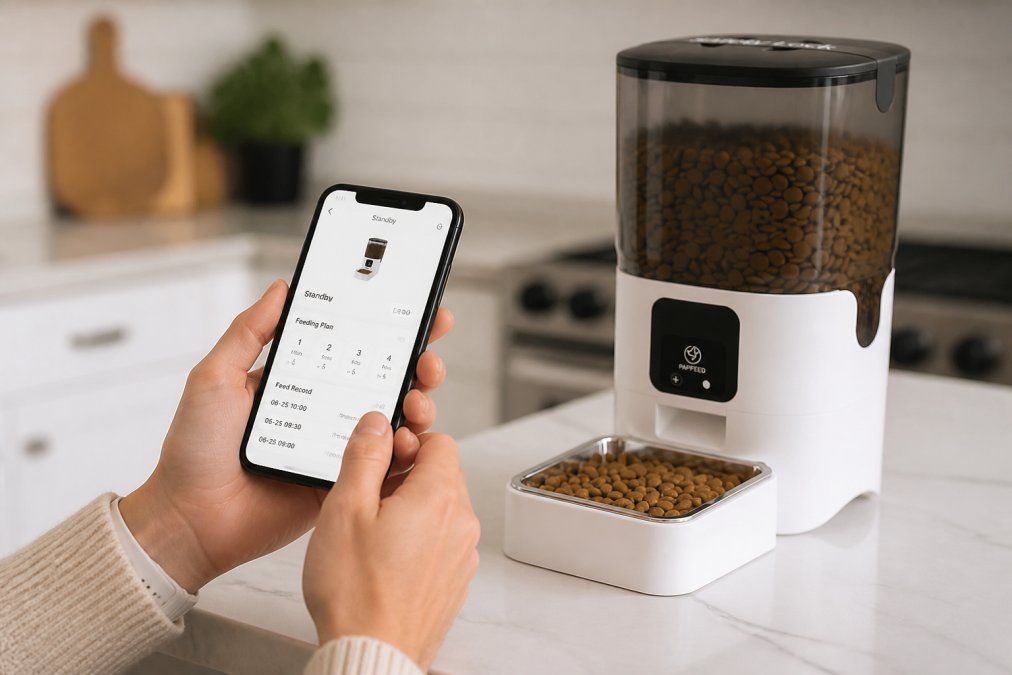
Next, verify that the feeder is actually on your WiFi network. Log into your router's admin panel and check the list of connected devices. If it's not listed, it never successfully joined the network. Remove the feeder from the app completely, restart both the feeder and your router, then re-add it using the QR code pairing method if available. QR code pairing is more reliable than manual network entry.
Check how many devices are connected to your 2.4GHz network. Each device competes for bandwidth. If you have 20+ devices on 2.4GHz, consider moving some to 5GHz or creating a separate guest network for devices that don't need your primary network.
Restart your router if the feeder keeps dropping offline intermittently. Routers accumulate connection table entries and can become unstable after weeks of continuous operation. A simple restart clears these tables and often resolves mysterious connectivity issues. Restart monthly as preventive maintenance.
If your feeder connects but the app constantly loses connection to it, check for signal interference. Move devices like microwaves, cordless phones, or baby monitors away from the router. These devices broadcast on the same 2.4GHz frequency and can cause your feeder to drop offline repeatedly.
Secure Your Network and Prevent Interference
Network security directly affects reliability. A WiFi network without a password attracts unauthorized devices that consume bandwidth and degrade performance. Set a strong WPA3 password on your 2.4GHz network (or WPA2 if your router doesn't support WPA3).
Change your router's default admin password immediately. Many routers ship with standard credentials that anyone can use to access your network settings.
Disable WPS (WiFi Protected Setup) on your router. WPS allows devices to connect by pressing a button, which is convenient but creates a security vulnerability.
Interference from neighboring networks is real. If you live in an apartment building or dense neighborhood, your 2.4GHz channel competes with dozens of other networks. Use a WiFi analyzer app to identify which channels are least congested, then set your router to that channel.
The Bentley's Bark 6L Smart Automatic Pet Feeder with WiFi & Camera ($109.95) includes built-in encryption for app communication. But encryption only works if your underlying network is secure. A password-protected network provides the foundation that allows encrypted communication to function properly.
Some routers offer a "smart home" or "IoT" mode that optimizes settings for devices like pet feeders. Enable this if your router provides it.
Maintain Your Feeder for Long-Term Performance
Hardware degradation is the overlooked cause of WiFi reliability problems. Over months of use, WiFi antennas collect dust, metal contacts corrode, and internal components experience wear. A feeder that connected reliably for six months might develop intermittent disconnections by month twelve without maintenance.
Clean the feeder's exterior monthly, especially around the WiFi antenna. Dust accumulation reduces signal strength. Use a soft, dry cloth.
Check the power connection if your feeder uses a wall adapter. Loose connections or corroded contacts degrade power delivery and cause the WiFi module to operate in a low-power state.
Firmware updates are maintenance, not optional upgrades. Manufacturers release updates that fix WiFi stability issues, improve battery management, and patch security vulnerabilities. Check for updates monthly.
Battery degradation affects reliability over time. Rechargeable batteries lose capacity after 300-500 charge cycles. If your feeder's battery used to last five days and now lasts two days, replace it before it fails completely.
Test your feeder's offline functionality quarterly. Disconnect your WiFi intentionally and verify that the feeder still dispenses meals according to its stored schedule.
Frequently Asked Questions
Why does my smart pet feeder keep going offline?
Smart pet feeder WiFi reliability issues often stem from weak signal strength, router distance, or network interference. Check that your router is within 10 meters of the feeder and operating on the correct frequency band. Interference from microwaves, cordless phones, or neighboring networks can also cause disconnections. Restart both your router and feeder to reset the connection. If problems persist, ensure your router firmware is updated and your feeder has adequate battery backup to maintain offline scheduling during outages.
Should I use 2.4GHz or 5GHz for my smart pet feeder?
Most automatic pet feeders work best on 2.4GHz WiFi because it has better range and wall penetration than 5GHz. While 5GHz offers faster speeds, it has a shorter range and weaker ability to pass through obstacles, making it less reliable for pet feeders in kitchens or distant rooms. Stick with 2.4GHz for consistent connectivity. Some modern routers allow you to separate bands in settings, so ensure your feeder connects specifically to the 2.4GHz network for optimal reliability.
What happens to my pet if the WiFi goes down?
A quality smart pet feeder with battery backup and offline memory continues to operate during WiFi outages. The feeder stores your programmed feeding schedule locally, so meals dispense on time even without internet connection. However, you won't receive real-time alerts or be able to monitor your pet remotely. This is why battery backup importance cannot be overstated. Always choose a feeder with dual power supply and offline mode capability, like the 6L Smart Automatic Pet Feeder, to ensure your pet stays fed regardless of connectivity issues.
How do I fix troubleshooting pet feeder app problems?
Start by force-closing the app and restarting your smartphone, then restart the feeder itself. Check that your phone and feeder are on the same WiFi network and that the router hasn't blocked the feeder's connection. Update the app to the latest version, as older versions often have connectivity bugs. If the issue persists, try reconnecting the feeder through the app's pairing process, which typically involves scanning a QR code. Ensure your router is not overly congested by checking how many devices are connected. If problems continue, contact the manufacturer's support team.
This article was written using GrandRanker